5 simple steps
- Connect MotionPad first.Start the Android app and Windows Receiver. Confirm your button and stick inputs move correctly in Receiver / vJoy Monitor.
- Open PCSX2 controller settings.Go to
Settings → Controllers → Global Settings. Enable DInput (DirectInput). If SDL was detecting the same virtual device incorrectly, disable SDL while setting up this controller to avoid conflicting inputs. - Select Controller Port 1.Choose DualShock 2 → Bindings → Clear Mapping for Port 1. Use Shared profile unless you specifically use per-game profiles. Do not use Automatic Mapping—PCSX2 does not support it for DInput.
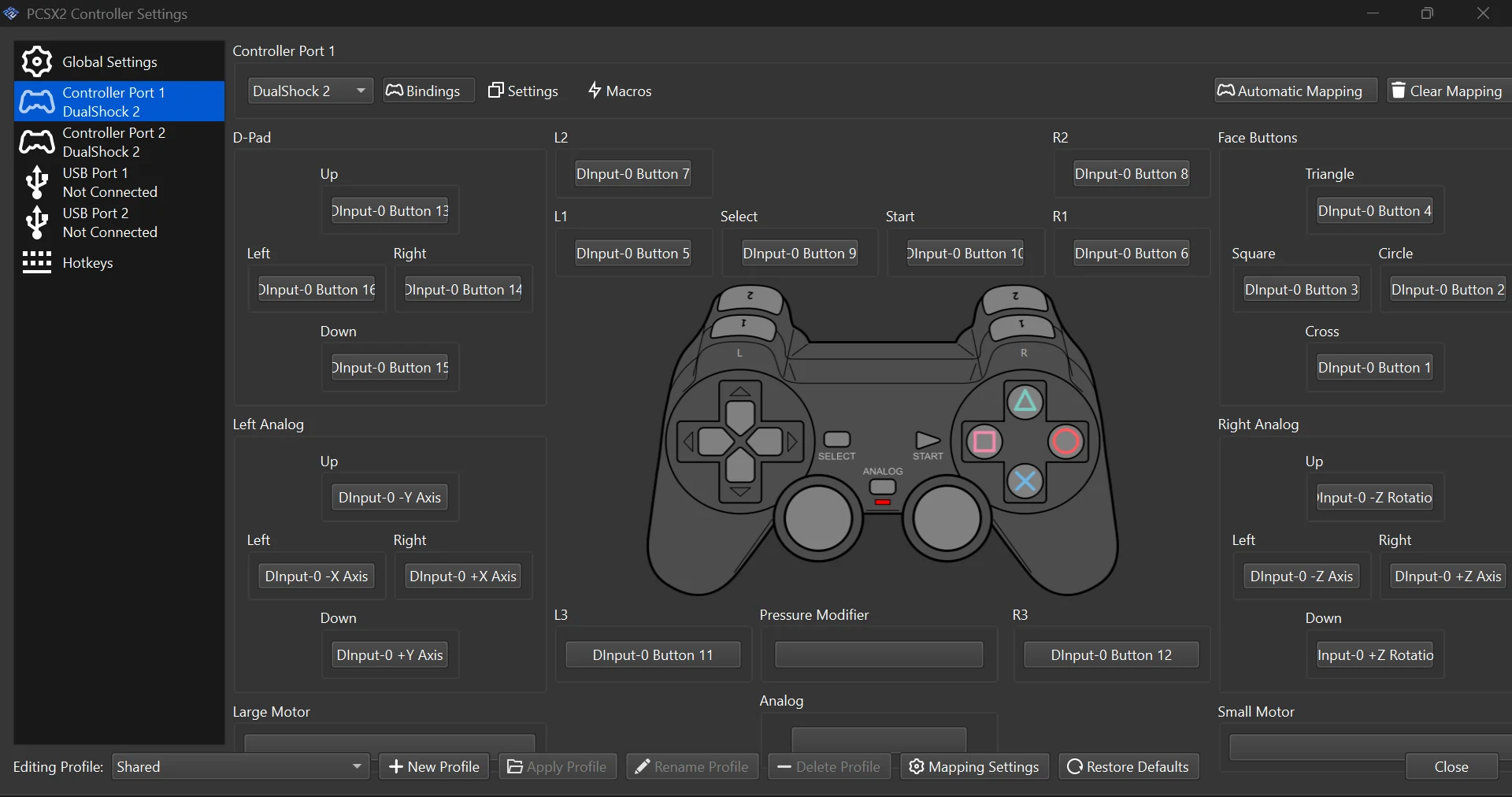
- Assign controls one at a time.Click a PS2 button or analog direction on screen, then press or move that same control in MotionPad. Repeat for the D-pad, face buttons, shoulders, Start/Select, both sticks, and L3/R3. PCSX2 will show a
DInput-0 ...binding. - Test inside a game.Close settings and launch a game. Check the character or menu reacts in the correct direction. Keep the assignments that work in gameplay. You do not need XInput or a different Receiver build.
Important: DirectInput axis labels can look unusual. Don't swap X/Y or rotation axes just because their names look wrong—actual game movement decides whether a mapping is correct.
Optional: see our confirmed working vJoy button map and screenshot
These values were observed with MotionPad Receiver v1.0 and vJoy. The numbers help you recognize the correct virtual device, but if your device uses other labels, map by pressing the actual controls rather than copying numbers blindly.
This is a workaround for incorrect PCSX2 SDL auto-mapping, not a required change to MotionPad's Android app, Windows Receiver or vJoy. For additional emulator documentation, see PCSX2's controller guide.